Hello everyone,
I hope you are doing great. In this article, I’m going to show you how to integrate ESET Secure Authentication to Palo Alto SSL VPN.
Before start the reading, you should know that you need a Domain Controller which is integrated with your firewall and your ESA Server has to be joined in. Additionally, users must connect be signing to VPN using their Domain credentials.
So, let’s get started! After you choosed the Radius Module in ESA installation process, you are going to see the RADIUS section in Components. See below.

Firstly, create a Radius Client in ESA Web Console. Do not forget to create a strong shared secret 🙂

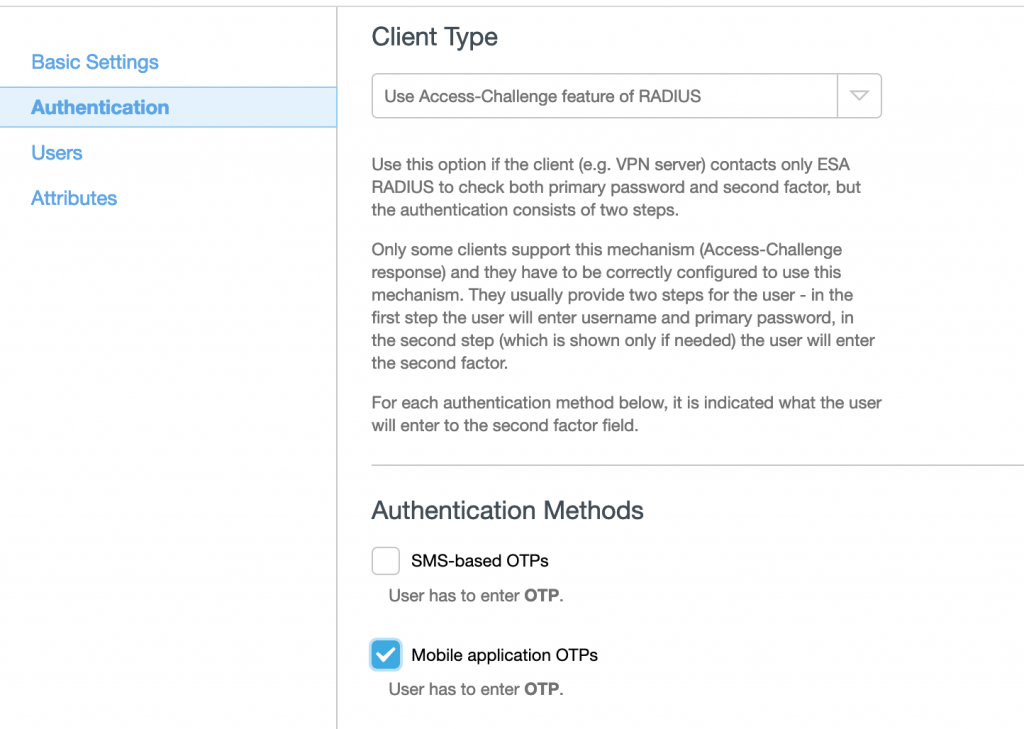
Secondly, choose the client type and authentication method. I think the best way is Use Access-Challenge as client type and for authentication type is Mobile App OTP.
Thirdly, go to Users section and choose your Realm. Generally, you can leave it as default if you don’t have two different Domains. Your task in ESA Web Console is done.

Next, go to Palo Alto Web Panel and create a Radius Server in Device > RADIUS section.
Profile Name : ESA
Authentication Protocol : PAP
Then click the Add button on the bottom side of your window and write your Radius Server details.
Name : ESA
Radius Server : IP Address of your ESA Server
Secret : Shared secret which you created in ESA Web Console.
Port : 1812

After that, go to Device > Authentication Profile section and create an Authentication Profile.
Name : ESA
Type : RADIUS
Server Profile : ESA
Then go to Advanced section and Add All users option.


Finally, go to Network > Gateway section, edit the rule, in Authentication section and change the Authentication Profile to ESA. And, save the changes.

Alright, you can start using 🙂 Thanks for your interest. I will be writing about integration to other firewalls as well, soon.
Keep safe and have a nice day 🙂

